
VLC for Android
Full-featured player for phones & tablets.
VLC for Android is a separate application from the desktop player, rebuilt around touch input rather than shrunk down from a mouse-driven interface. It carries the same decoding engine, which means phone footage, MKV files with embedded subtitles, and formats the built-in gallery app ignores all play without conversion.
Two packages exist and they are not interchangeable. The phone and tablet build targets touchscreens; the Android TV build is a different listing built for a remote control and a ten-foot interface. Below is what each one does, how to install without the Play Store, and the fixes for the three problems that generate most Android playback complaints.
Version 3.0.23 · VLC for Android
or download the APK package from our mirrors. Changelog
Downloads are served directly from the official VideoLAN servers. Always get VLC from official sources.
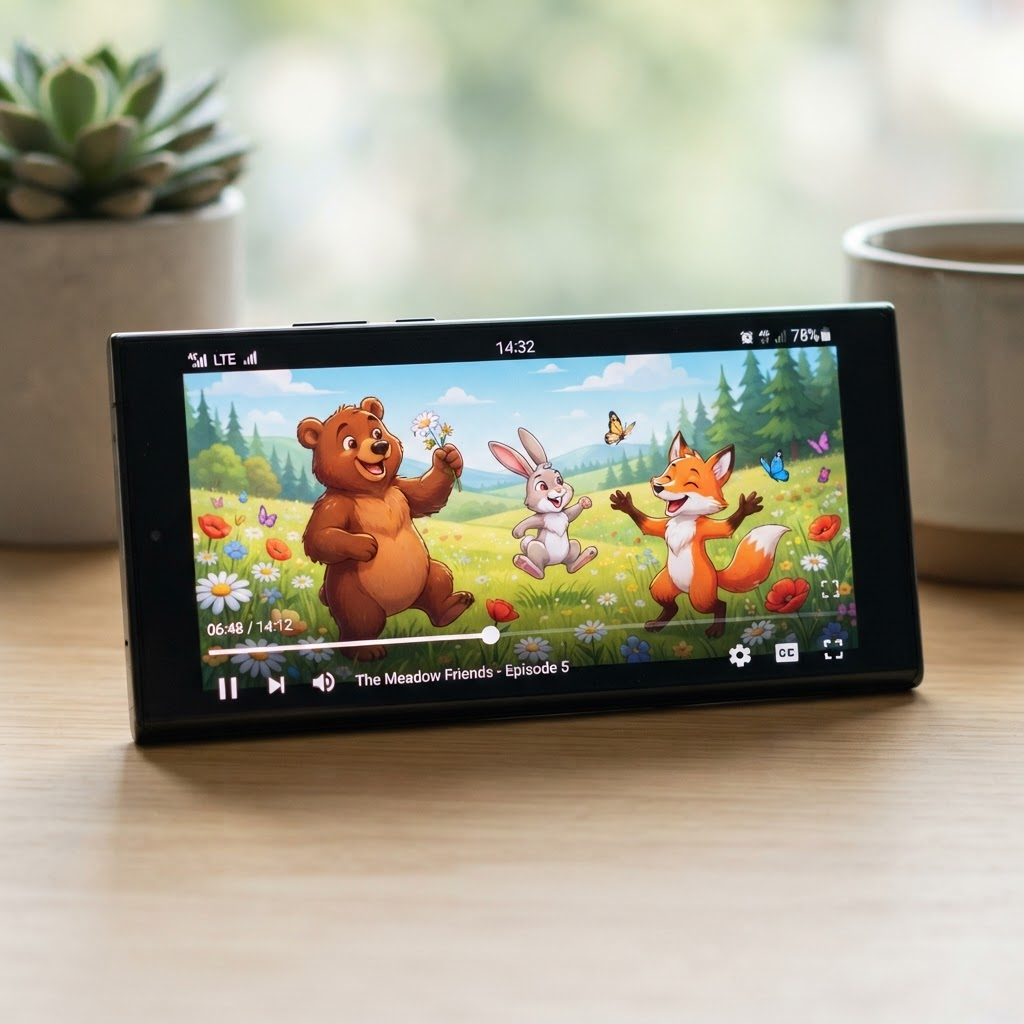
File details
- Package type
- Google Play listing, or direct APK download
- Separate build
- VLC for Android TV uses its own package
- License
- GPLv2 or later, free with no in-app purchases
- Permissions
- Media and storage access only, no account required
- Architectures
- ARM and x86, 32-bit and 64-bit
System requirements
- Minimum OS
- Android 5.0 Lollipop
- Recommended OS
- Android 9 or later
- Storage
- Around 60 MB installed
- Input
- Touch, or a remote on the TV build
How to install
- 1
Open Google Play or download the APK.
- 2
Tap Install.
- 3
Open a file and play.
Installing without Google Play
The APK is published directly by VideoLAN, which matters for devices without Play Services: budget phones sold in regions where the store is unavailable, Android TV boxes, and older tablets that no longer receive store updates. Download the APK for the matching architecture and allow installation from unknown sources for that one file.
Allow the install from the notification shade rather than hunting through settings beforehand; Android asks for the permission inline the first time. After installation the prompt disappears and the setting reverts, which is the behaviour you want. A build that asks for SMS, contacts or location access is not the official package.
Granting access to your files
On Android 11 and later, scoped storage changed what an application can see. VLC asks for media permission on first launch and can browse your video and audio folders once granted, but a folder outside the standard media locations may still appear empty until you add it explicitly in the app settings.
This trips people up after moving files to an SD card or to a Downloads subfolder. The files are there and the player is working correctly; it simply has not been told to look there.
Playing from a computer on the same network
The Local Network section browses SMB shares, UPnP and DLNA servers, and FTP. Point it at a share on your desktop and the phone plays files over Wi-Fi without copying anything, which is the practical way to watch a large file on a device with limited storage.
Playback quality depends on the Wi-Fi link rather than the phone. A 4K file over a congested 2.4 GHz network will stutter no matter what the decoder does, so prefer 5 GHz for anything above 1080p, or copy the file locally instead of streaming it.
Gestures and background audio
Swiping vertically on the left half of the screen changes brightness, the right half changes volume, and a horizontal swipe seeks. Those zones can be disabled individually if they keep triggering by accident while you hold the phone.
Audio continues in the background by default when you leave the app, with controls in the notification shade. If playback stops the moment you switch apps, check that battery optimisation for VLC is not set to restrict background activity; aggressive vendor power management is the usual cause on Chinese Android builds.
Subtitles on a phone
Embedded subtitle tracks are read from the container automatically. For external files, keep the subtitle file in the same folder with the same base name and VLC will load it without being asked. Character encoding is the one setting worth knowing about: if a subtitle displays as boxes or accented nonsense, change the encoding from the subtitle menu, and legacy Chinese or Eastern European files usually need GBK or Windows-1252 rather than UTF-8.
Timing adjustments live in the same menu and are saved per file, so a subtitle that runs half a second late stays corrected the next time you open that video.
Frequently asked questions
- Is VLC for Android free?
- Yes. It is released under the GPLv2 with no ads, no in-app purchases and no account. The Play Store listing and the direct APK are the same application from the same publisher.
- Why can VLC not see files on my SD card?
- Android 11 and later restrict filesystem access per folder. Add the folder explicitly through the app settings once, and it stays visible on later launches.
- What is the difference between VLC and VLC for Android TV?
- They are separate applications. The TV build has a remote-friendly interface and a different package name, so installing one does not give you the other. Use the TV listing on a set-top box.
- Can VLC play files from my computer over Wi-Fi?
- Yes, through SMB, UPnP or DLNA in the Local Network section. Performance depends on the network, so use a 5 GHz link for high-bitrate files.
- Why do subtitles show as garbled characters?
- The file encoding does not match what the player assumed. Change it from the subtitle menu; UTF-8 covers most modern files, while older Chinese and European subtitles need GBK or Windows-1252.