
VLC for Mac OS X
Universal build for Intel & Apple Silicon.
The macOS build of VLC is a universal application, meaning one download runs natively on both Intel Macs and Apple Silicon machines. There is no Rosetta translation step on an M-series Mac and no separate download to look for, which is the main thing to know before you start.
What follows covers the disk image workflow, the Gatekeeper prompt that stops most first-time installs, the playback settings worth changing on a Mac, and how to use VLC for the jobs QuickTime simply will not do.
- Version
- Version 3.0.23
- Requirements
- macOS 10.10+
Downloads are served directly from the official VideoLAN servers. Always get VLC from official sources.
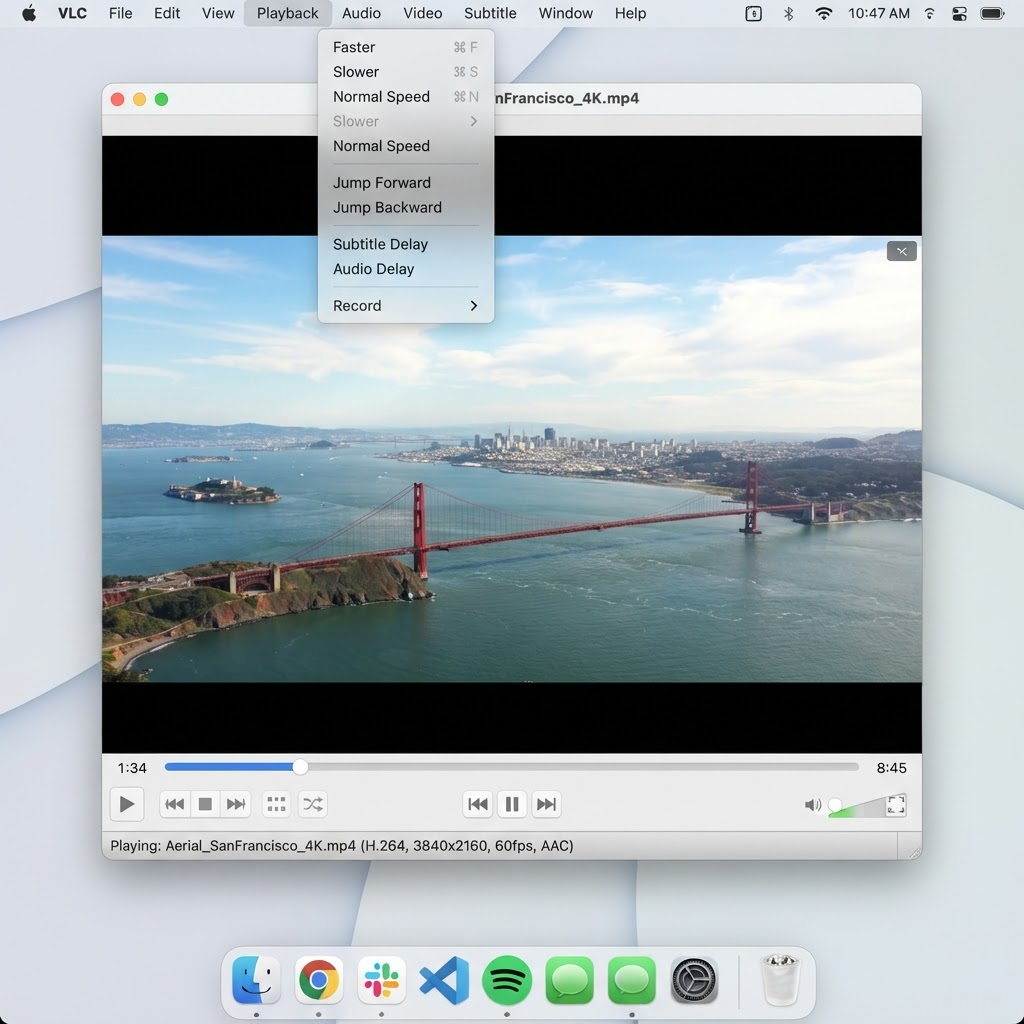
File details
- Architecture
- Universal binary, Intel and Apple Silicon
- Package type
- .dmg disk image
- License
- GPLv2 or later, free for personal and commercial use
- Publisher
- VideoLAN non-profit project
- App bundle
- Self-contained, no system-wide codec install
System requirements
- Minimum OS
- macOS 10.10 Yosemite
- Recommended OS
- macOS 11 Big Sur or later
- Processor
- Intel x64 or Apple Silicon (M1 and later)
- Memory
- 1 GB to launch, 4 GB or more for 4K playback
- Disk space
- Around 200 MB after installation
How to install
- 1
Download the .dmg image.
- 2
Drag VLC into Applications.
- 3
Launch VLC from Applications.
Installing from the disk image
Open the .dmg and a window appears with the VLC icon on the left and an Applications folder alias on the right. Drag the icon onto the alias. That is the entire installation: macOS applications are self-contained bundles, so nothing is copied into system libraries and no installer runs.
Do not launch VLC from inside the mounted disk image. It will appear to work, then fail later when the image is unmounted, and settings will not persist correctly. Drag it to Applications first, then eject the image.
The Gatekeeper prompt
On first launch macOS may refuse to open the app with a message that it cannot be opened because the developer cannot be verified. This is Gatekeeper reacting to an app distributed outside the App Store, not an indication that the file is malicious. Open System Settings, go to Privacy and Security, and look for the line about VLC near the bottom; approve it there, then launch again.
On older macOS versions the equivalent path is a right-click on the app icon, then Open, then confirming the dialog. Double-clicking will not offer the same option, which is why people get stuck on this step.
Settings worth changing on a Mac
Two defaults annoy Mac users most. The first is the audio device: VLC picks the system output, so if you switch to headphones mid-playback it may keep sending audio to the previous device. Set the output explicitly under Audio, then Audio Device, and it will follow your choice.
The second is trackpad gestures. Under Preferences, then Interface, you can disable horizontal swipe seeking if it keeps triggering while you scroll. For subtitle work, Subtitles and OSD lets you set the default font, size and encoding once instead of adjusting each file; UTF-8 is the right default for almost everything, and legacy Windows-1252 is the usual fix for garbled characters.
What VLC can do that QuickTime cannot
QuickTime plays what macOS supports natively, which excludes MKV, most FLAC containers, Ogg, and any footage encoded with a codec Apple never licensed. VLC decodes all of those in software, so a file that QuickTime rejects usually plays immediately with no conversion.
It also opens network sources directly. Media, then Open Network Stream accepts SMB shares on your local network, RTSP from a camera, and HTTP streams. Dragging an ISO or a VIDEO_TS folder onto the window plays a disc image without mounting it, which is handy for archived DVDs. Screen recording and the Convert / Save dialog are included too, so trimming a clip or extracting an audio track does not require a second application.
When playback stutters on Apple Silicon
Native hardware decoding on M-series chips works, but the automatic setting sometimes falls back to software on unusual codecs, and software decoding of 4K HEVC will drop frames on a laptop. Check Tools, then Preferences, then Input / Codecs, and try VideoToolbox explicitly.
If the picture freezes while audio continues, or the window turns black on full screen, the display link is the usual culprit. Switching the video output module under Preferences, then Video, to OpenGL instead of the default resolves most of these cases. Verify which architecture is actually running with Activity Monitor: a VLC process labelled Intel means macOS is using Rosetta, which happens if you migrated the app from an older backup rather than installing fresh.
Frequently asked questions
- Does VLC run natively on Apple Silicon?
- Yes. Current releases are universal binaries that run natively on M-series chips. If Activity Monitor shows the process as Intel, you are running an older copy, and a fresh install replaces it with the native build.
- Why will macOS not open VLC after I install it?
- Gatekeeper blocks apps distributed outside the App Store on first launch. Approve it under System Settings, Privacy and Security, or right-click the app and choose Open rather than double-clicking.
- Can I delete the .dmg after installing?
- Yes. The disk image is only a container for the app bundle. Once VLC is in Applications and launches correctly, the .dmg can be deleted, which frees the download size.
- Why does audio keep going to the wrong output device?
- VLC remembers the audio device it was told to use. Set it explicitly under Audio, then Audio Device, instead of leaving it on the system default, and it will stay on that device when you plug in headphones.
- Does VLC support Touch Bar controls?
- On MacBook Pro models with a Touch Bar, VLC shows playback controls while a video is playing. The controls follow the current window, so they disappear when you switch to another app.