VLC skins
Skins let you completely change the look of VLC on the desktop. Browse a few popular skins below, install them in seconds, and even build your own.
Downloads
Download all the skins at once here (37 MiB). Downloaded 3,596,261 times since January 2007. This pack is updated daily.
Popular skins
A selection of community skins. Download the .vlt file and follow the install steps below.
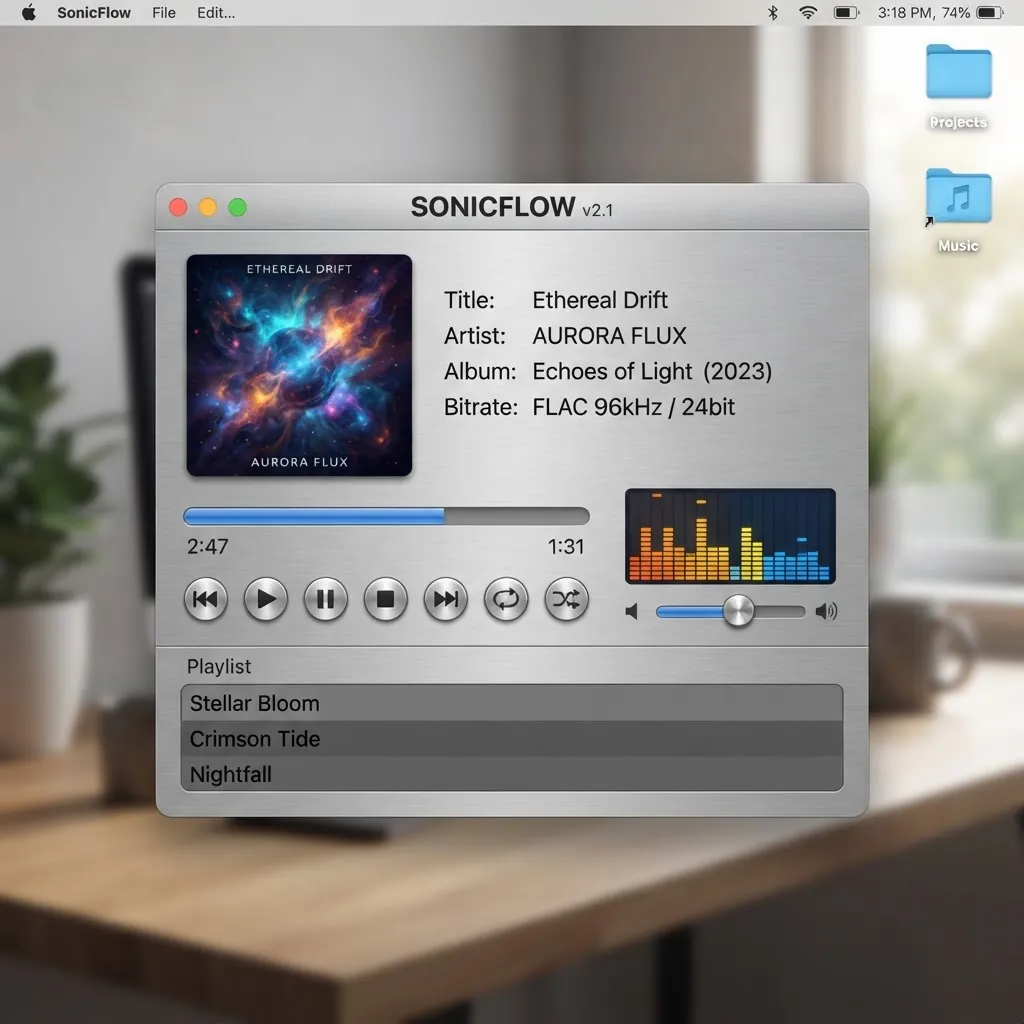
Brushed Metal
by VLC Community
A sleek brushed-metal look with chrome controls and a compact spectrum visualizer.
Download skin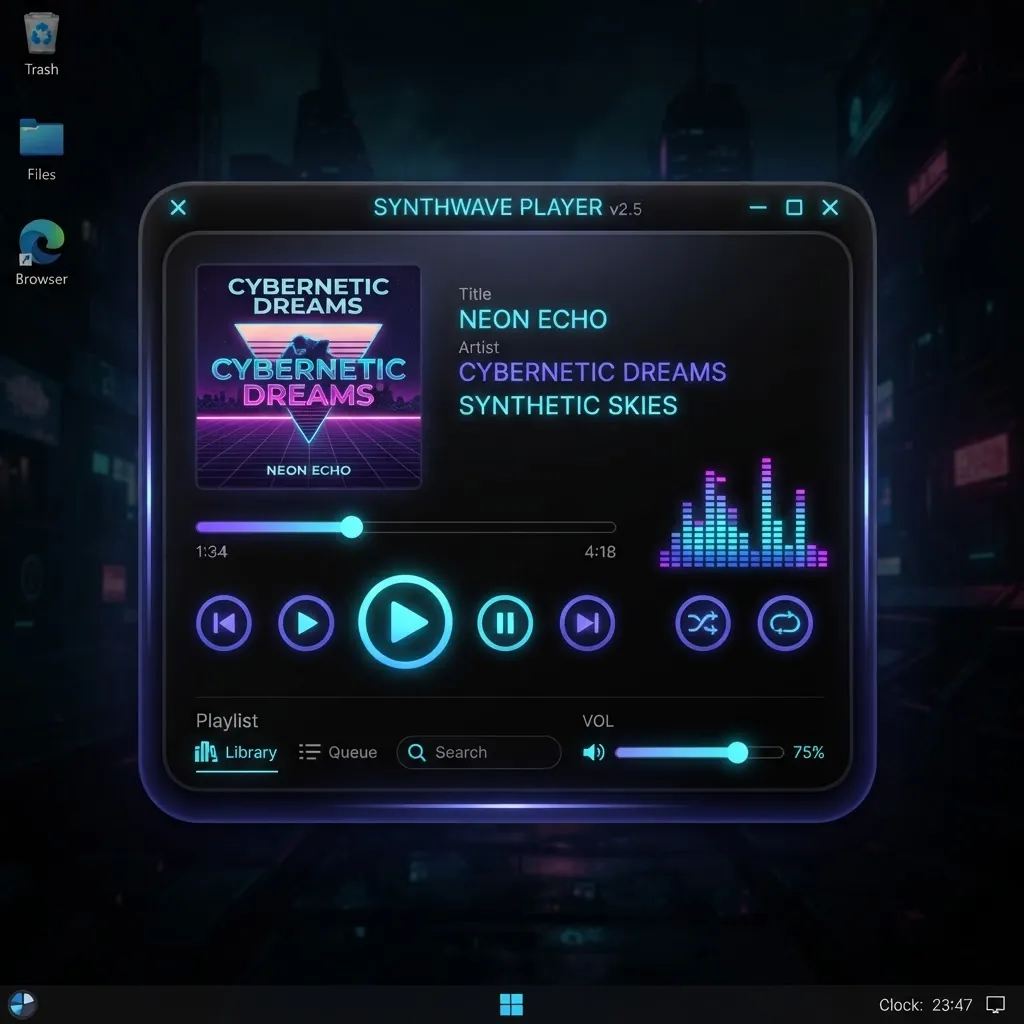
Neon Glow
by VLC Community
A dark skin with glowing indigo and cyan accents for a futuristic vibe.
Download skin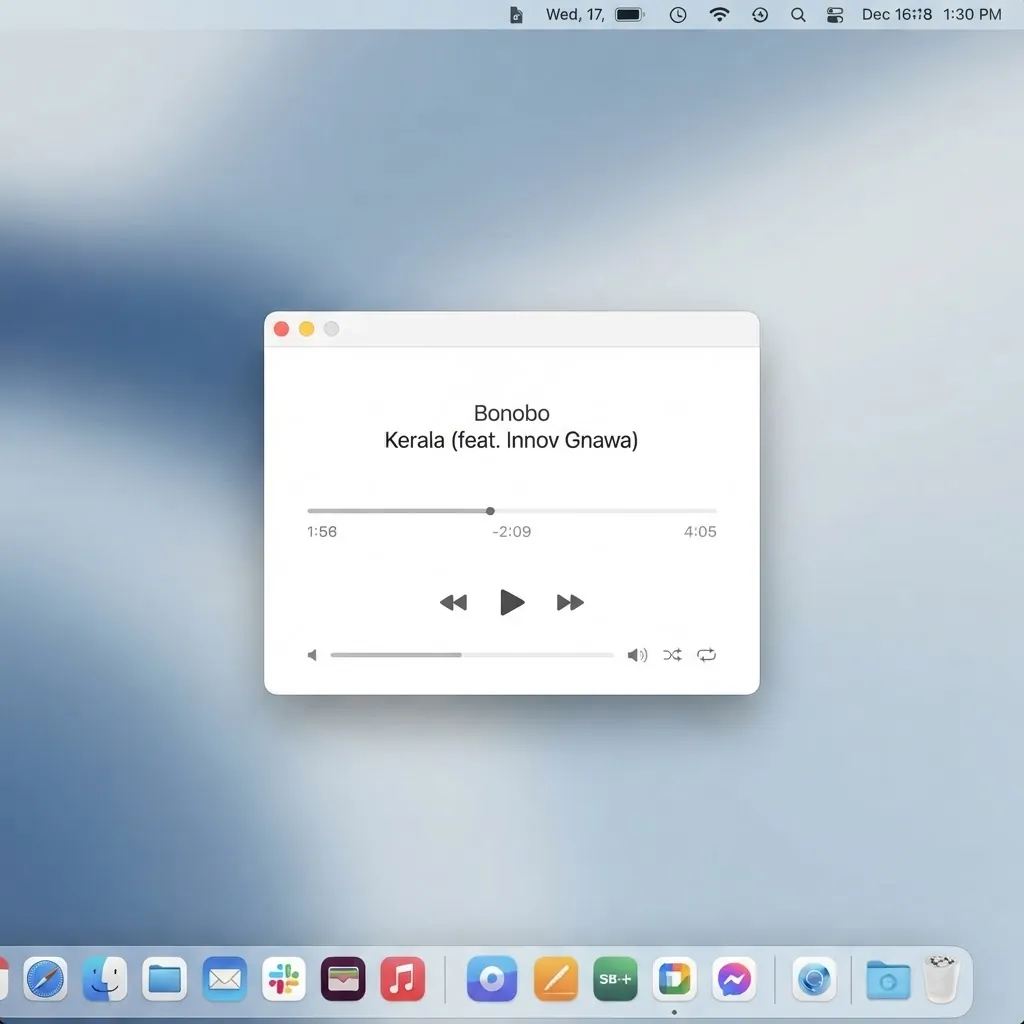
Minimal White
by VLC Community
An ultra-clean flat white skin that keeps only the essential controls.
Download skin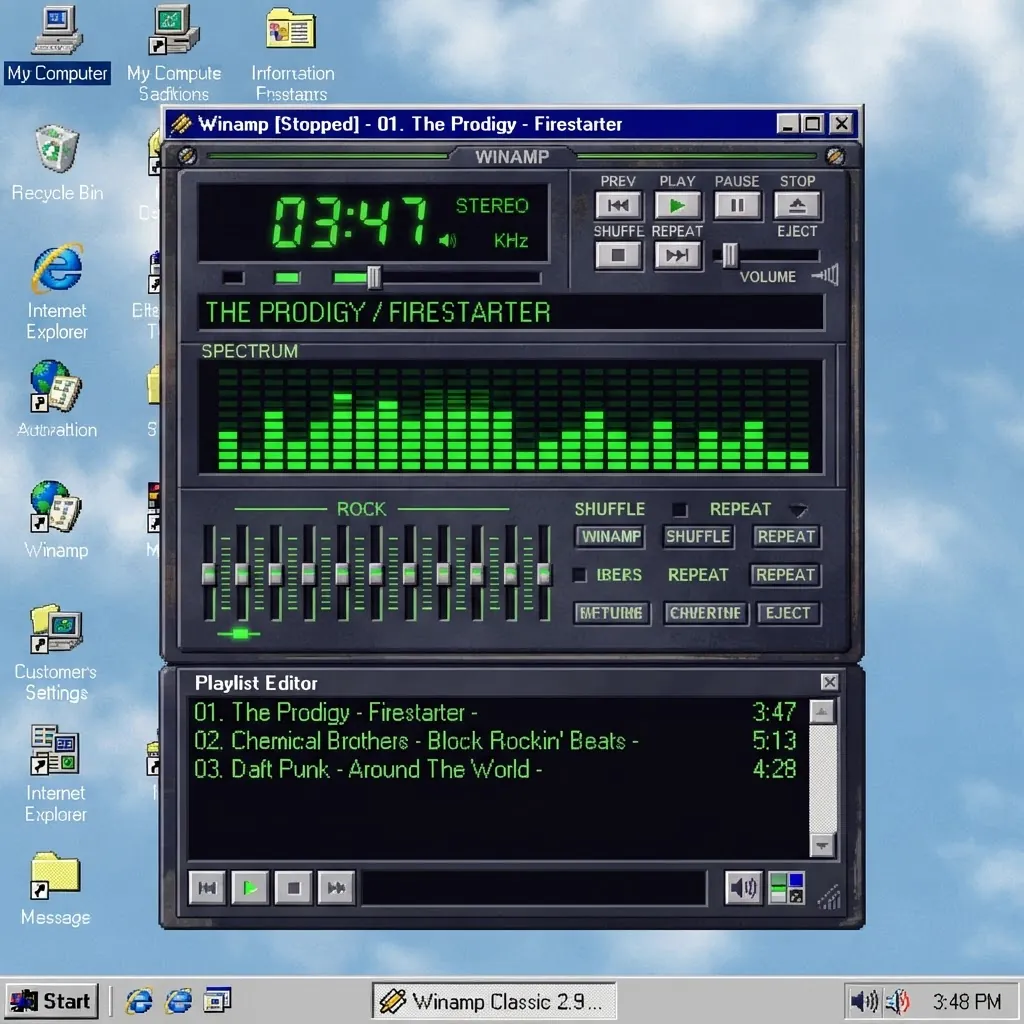
Retro Deck
by VLC Community
A nostalgic 90s player look with an LCD display and a green spectrum analyzer.
Download skin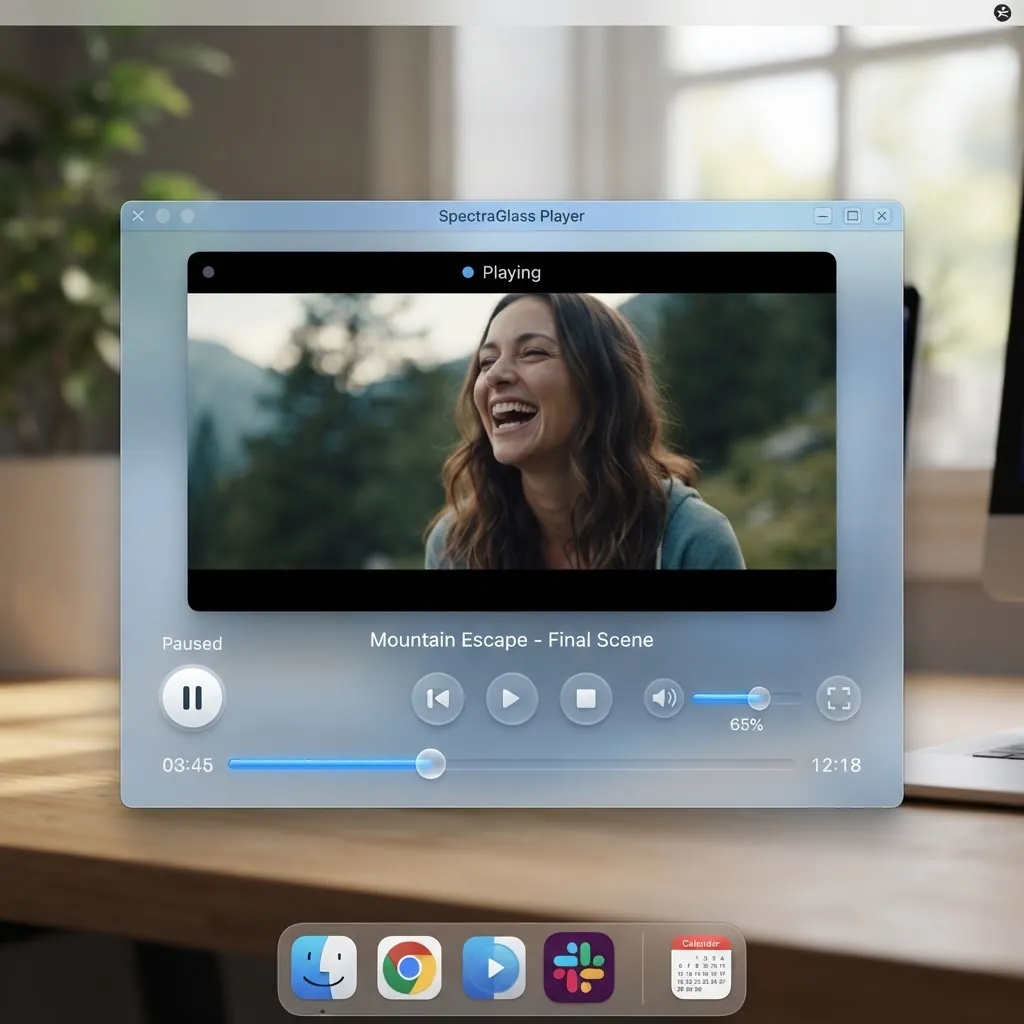
Frosted Glass
by VLC Community
A translucent frosted-glass skin with soft blur and glossy buttons.
Download skin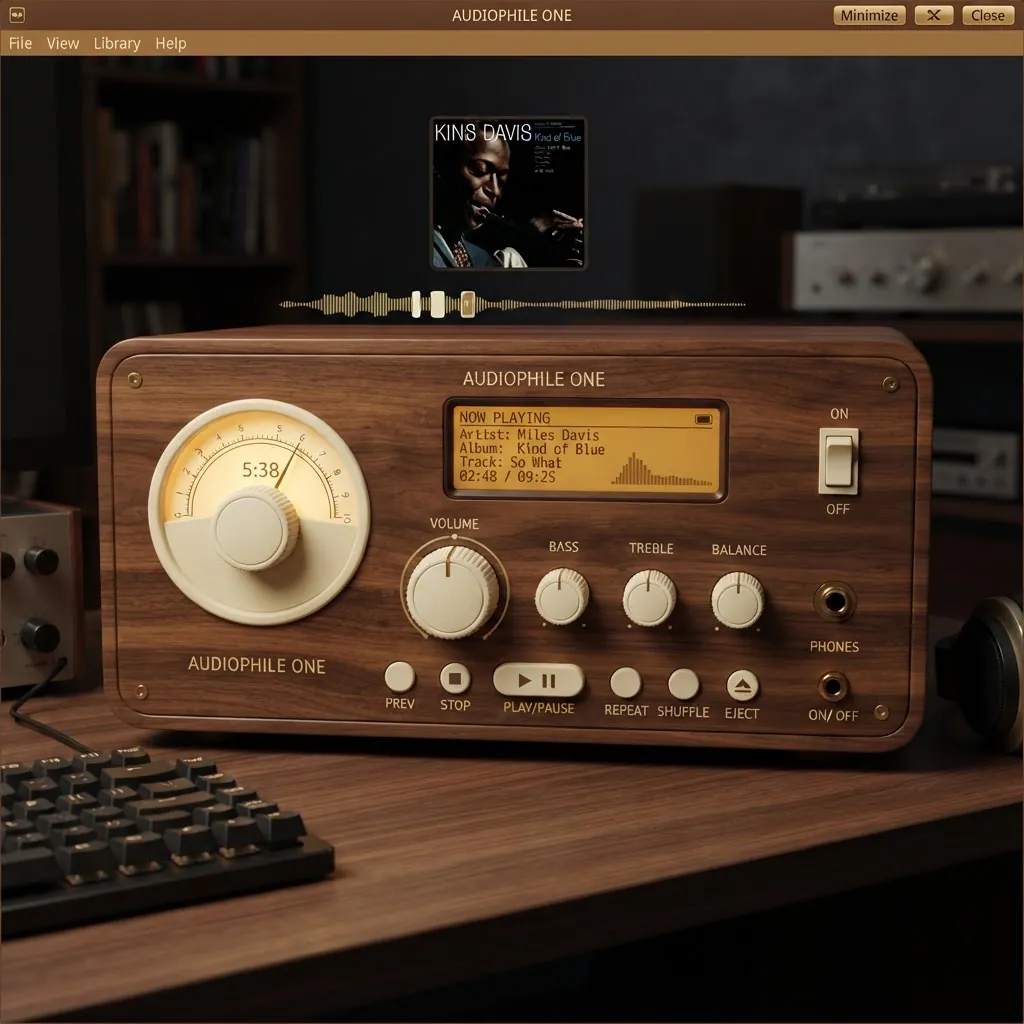
Walnut Hi-Fi
by VLC Community
A warm wood-grain hi-fi skin with analog-style knobs and a cream palette.
Download skinHow to use these skins?
Skins do not work on Mac OS X!
Put the downloaded VLT files in the following folder:
- On Windows:
the skins folder in the VLC installation directory (e.g. C:\Program Files\VideoLAN\VLC\skins) - On Linux / Unix:
~/.local/share/vlc/skins2
Then open your VLC settings and change your interface from native to skins. You can choose your desired skin already there, or change it while in skins mode by right-clicking somewhere on the skin and going to Interface > Choose Skin.
VLC needs to be restarted to change to skins mode.
Browse all skinsCreate your own skin!
If you wish to create your own skin, check out these resources: