Play almost anything with VLC Media Player
VLC is a free and open-source, cross-platform multimedia player that plays most files, discs, webcams, devices and streams — with no ads, no spyware and no user tracking.
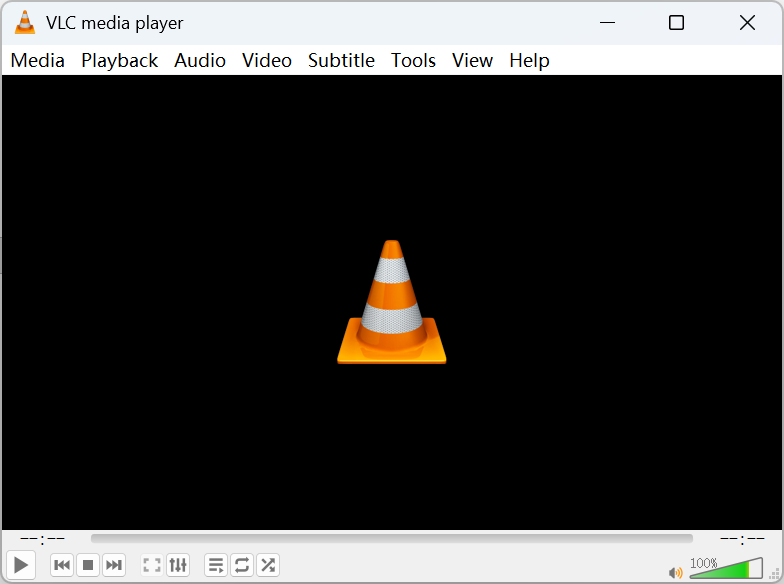
About VLC Media Player
VLC is a free and open-source, cross-platform multimedia player developed by the non-profit VideoLAN project. Since its first release in 2001 it has been downloaded more than 4.5 billion times, making it one of the most popular media players in the world. A rich set of built-in decoders lets it play almost any audio or video file out of the box — no codec packs required — along with DVDs, VCDs and network streams.
This site is an independent VLC guide: version information, feature walkthroughs, FAQ answers and installation tutorials, plus official download channels for every platform. All download links point to the official VideoLAN servers, so you always get a safe, unmodified installer.
VLC supports video formats such as MP4, MKV, AVI, MOV, WMV, FLV and WebM, audio formats like MP3, FLAC, AAC, OGG and WAV, and subtitle formats including SRT and ASS — with smooth 4K and 1080p playback.
VLC Media Player Download
Pick your operating system to grab the latest build.



For your security, always download VLC from the official VideoLAN website. This page links to the official sources.
How to install VLC
Follow the steps for your platform — a minute from download to playback.
Windows
- 1Download the .exe installer from the official site.
- 2Double-click the file and accept the security prompt.
- 3Follow the setup wizard, then launch VLC from the Start menu.
macOS
- 1Download the .dmg disk image.
- 2Open it and drag the VLC icon into your Applications folder.
- 3Launch VLC; approve the first-run prompt from Gatekeeper if asked.
Linux
- 1Prefer your distribution’s package manager or Flatpak.
- 2Debian/Ubuntu: run sudo apt install vlc.
- 3Fedora: run sudo dnf install vlc.
Android
- 1Search for "VLC" in Google Play, or get the APK from the official site.
- 2Tap install, grant the requested permissions, and start playing local and network videos.
- 3Enable hardware acceleration and subtitle preferences in the app settings.
iOS
- 1Search for "VLC media player" in the App Store and install it.
- 2Import videos via Wi-Fi sharing, cloud storage or your local network.
- 3It plays right after the first launch — no extra configuration needed.
Download safety tips
Follow these tips to avoid bundled software and fake installers.
Download only from the official VideoLAN website or the official channels listed here — avoid unknown third-party download sites.
VLC is completely free; be wary of any "VLC download" page that asks for payment or activation.
Read each installer screen and uncheck any bundled offers before continuing.
To verify file integrity, compare the SHA-256 checksum published by VideoLAN before installing.
Verifying your download (optional) — Advanced users can verify the SHA-256 checksum published alongside each official release to confirm the file has not been altered.
Why people choose VLC
A focused set of capabilities that cover almost every playback need.
Play almost any media format
VLC decodes the vast majority of audio and video formats — MP4, MKV, AVI, MOV, FLAC, MP3, HEVC and more — without downloading extra codec packs. Most of what it needs is built in, so files simply open and play.
Subtitle support
Load external subtitle files (SRT, ASS, SUB) or use tracks embedded in the video. VLC lets you adjust size, timing and synchronization on the fly, so dialogue always stays lined up with the picture.
Streaming & network playback
Open network streams over HTTP, RTSP, MMS and more, or paste a URL to watch directly. VLC can also act as a streaming server, broadcasting media across your local network to other devices.
Media conversion
Convert files between formats using the built-in Convert / Save tool. Repackage a video for another device or extract an audio track — no separate converter application required.
Screen & webcam recording
Capture your desktop or a webcam feed straight from VLC. It is handy for quick recordings, demos or grabbing a stream to a local file for later viewing.
Playlist management
Build, save and reorder playlists for music or video marathons. VLC remembers your queue and supports looping, shuffling and per-item options across long sessions.
Hardware acceleration
Offload decoding to your GPU to keep high-resolution playback smooth while lowering CPU usage and power draw. Acceleration is available across major platforms and can be toggled in preferences.
Audio & video effects
A built-in equalizer, filters and adjustments let you fine-tune sound and picture. Boost bass, normalize volume, or tweak brightness and contrast without any add-ons.
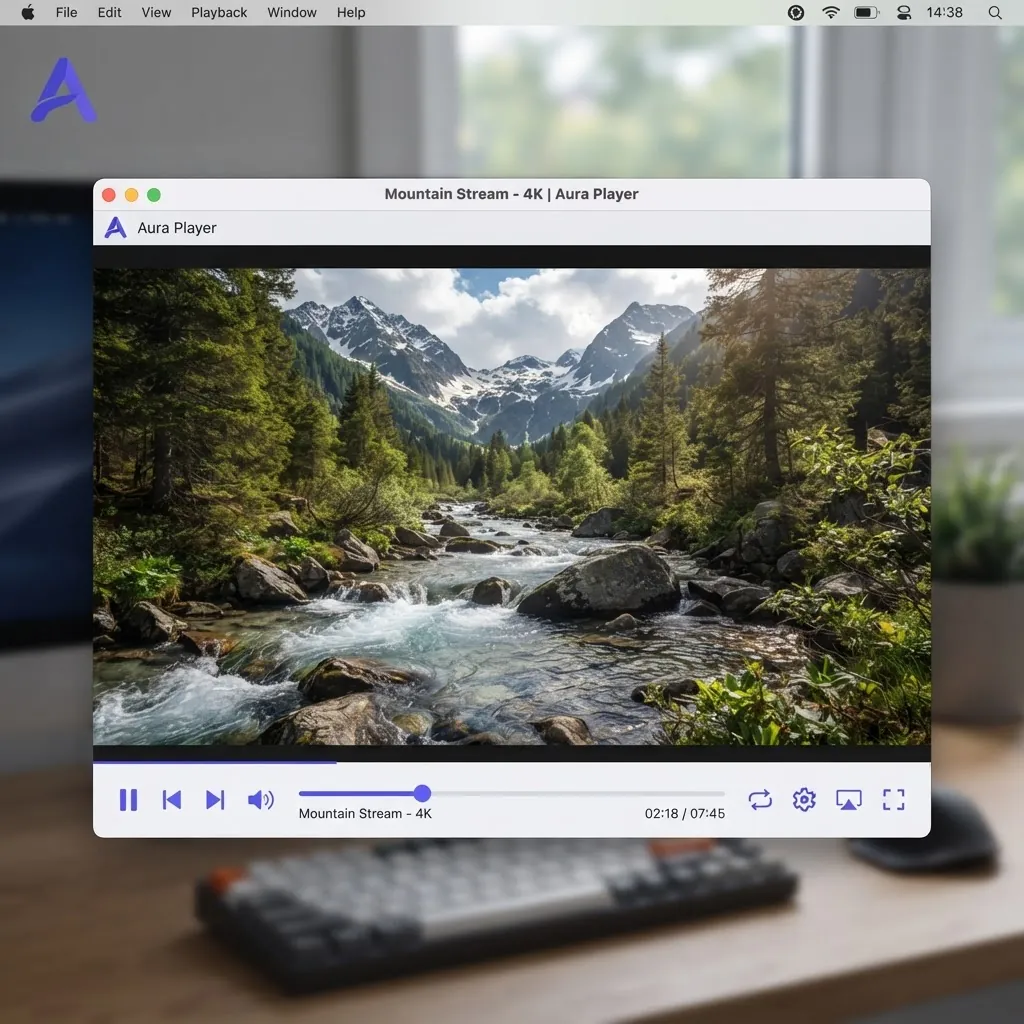
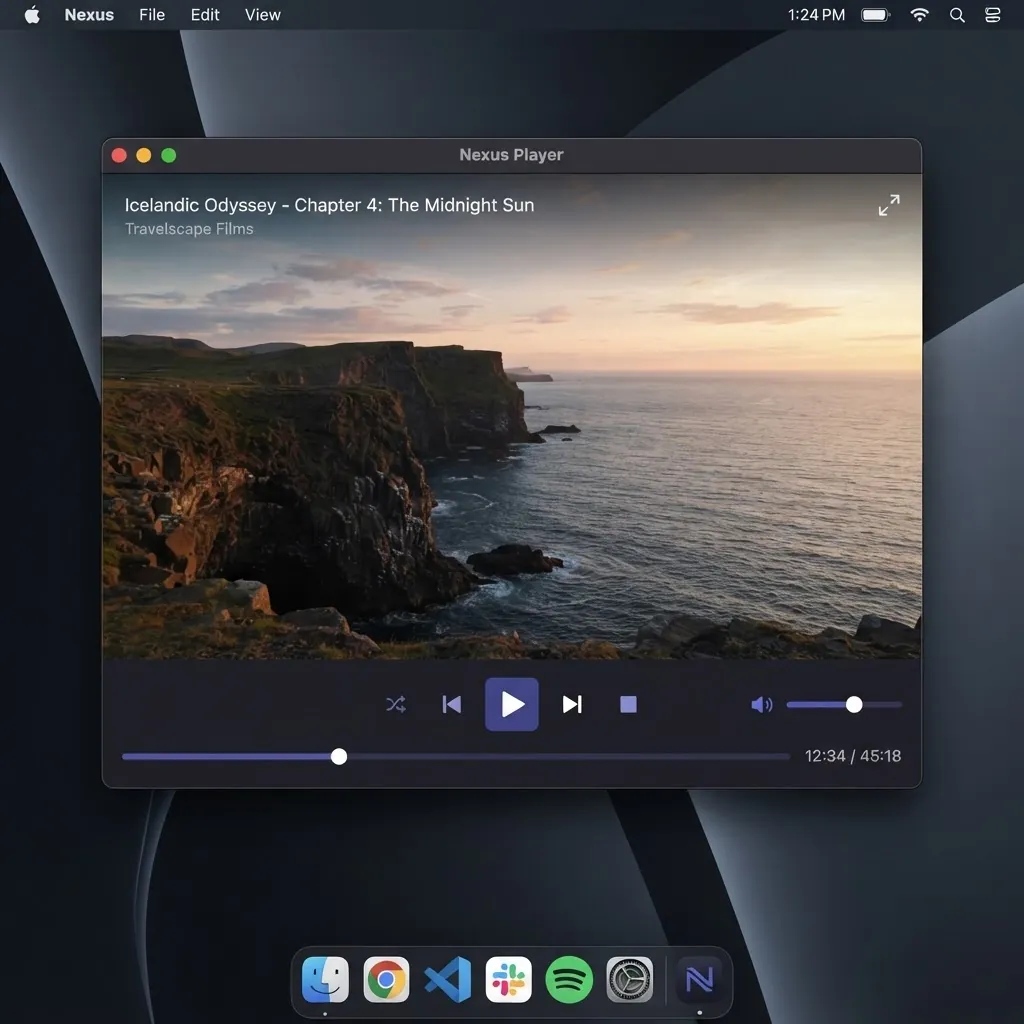
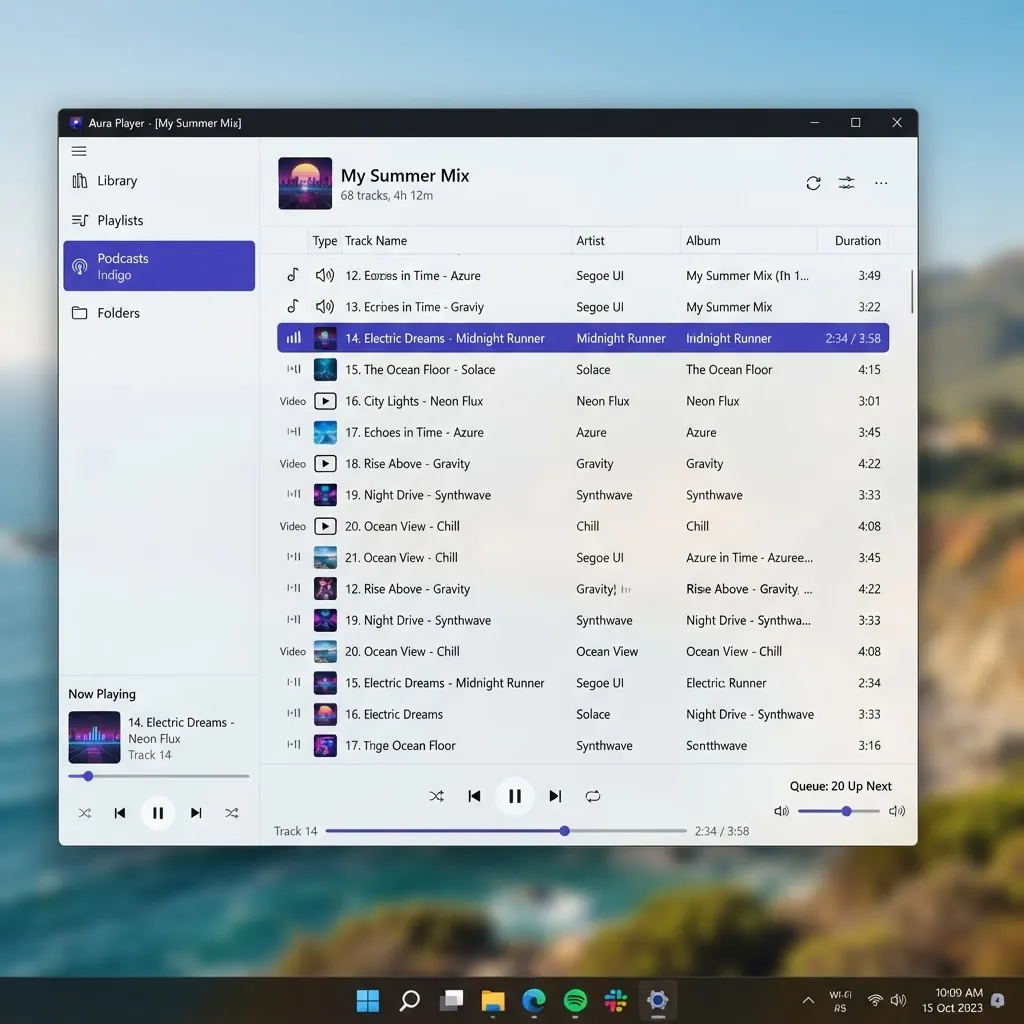
A look inside
Clean, functional interface across desktop and mobile.
Latest release
Version 3.0.23 was published on 2026-01-08. It bundles the usual mix of format, decoder and stability improvements.
Quick answers
The questions people ask most before downloading.
Is VLC free?
Yes. VLC is completely free and open source under the GPL license. There is no paid version, trial or subscription — every feature is available to everyone at no cost.
Is VLC Media Player safe?
VLC is safe when downloaded from the official VideoLAN website or an official app store. Avoid third-party mirrors, which sometimes bundle unwanted software with the installer.
Does VLC contain ads?
No. VLC does not show advertisements and does not include bundled adware or spyware when obtained from official sources.
Can VLC play MKV files?
Yes. MKV (Matroska) playback works out of the box, including multiple audio tracks and embedded subtitles.
Can VLC play HEVC / H.265?
Yes. VLC decodes H.265 / HEVC, including many 4K files. Enabling hardware acceleration helps playback stay smooth on capable hardware.
Can VLC convert videos?
Yes. Use the Convert / Save feature under the Media menu to change a file’s format or extract its audio without any extra software.
How do I update VLC?
On desktop, VLC can check for updates from the Help menu, or you can download the latest installer from the official site. On mobile, updates arrive through the app store.
How do I uninstall VLC?
On Windows, use Add or Remove Programs. On macOS, drag VLC from Applications to the Trash. On Linux, remove it with your package manager.
What video formats does VLC support?
VLC plays nearly every common format — MP4, MKV, AVI, MOV, WMV, FLV, WebM — plus audio like MP3, FLAC and AAC, with no extra codec packs required.
Is mobile VLC the same as desktop VLC?
Core playback is identical: formats, subtitles and playlists all work the same. The desktop app adds advanced tools like conversion and recording, while the mobile apps are touch-optimized and support network streaming.
Friend Links
Other independent software sites we built.
Independent VLC Media Player Guide
This website is an independent community project. It is not affiliated with or endorsed by VideoLAN.
All download buttons redirect users to the official VideoLAN download servers.